Getting started with Mitovo
From your first login to your first week of sessions: signing up, a few questions about you, the health check, Apple Health and the season your coach plans from your goals.
Updated:
You need an iPhone with iOS 26 or later. The Mac app uses the same account; Apple Health connects only on the iPhone, so start there.
1. Sign up
- Open Mitovo and tap Continue with email, or sign in with your Apple Account (Sign in with Apple).
- Enter your email address and tap Send code.
- Enter the 6-digit code from the email. Mitovo logs you in as soon as all six digits are in.
There’s no password: your first login creates your account, and every later login works the same way. A code is valid for 10 minutes. If it doesn’t arrive, check your spam folder, or tap Use a different email to correct the address and send a new code.
2. Give your consent
The screen Before we start shows how Mitovo handles your data: it’s a coach, not a doctor; your health data stays on Mitovo’s server in Germany, only to coach you; and the AI coach sees only the data it needs. The privacy policy and terms of use are linked there.
Turn on I’m 16 or older. and I agree that Mitovo processes my health data as described above., then tap Agree and continue.
3. Connect Apple Health
A new account is asked first Where did you hear about Mitovo? Tap an answer or Skip; it’s optional. Then come two screens:
- Which watch do you use? Optional: pick yours and tap Continue. With an Apple Watch, see also Apple Watch.
- Connect Apple Health lists what Mitovo reads and why: workouts and heart rate, HRV and resting heart rate, sleep, body measurements, and energy, steps and distances. Tap Continue, then allow the data types in Apple’s dialog. Mitovo reads your history and stays in sync; it writes only what you log.
What Mitovo reads, and what to do when workouts don’t show: Apple Health. If you’d rather wait, tap Not now. Your workouts and sleep then stay empty until you connect Apple Health in You › Connections › Apple Health. If you said you wear a Garmin and connected Apple Health, one more screen shows which settings in Garmin’s app pass your data on to Apple Health.
On the Mac these screens don’t appear: the Mac app gets your data through your iPhone.
4. About you and the health check
- About you: enter your year of birth and your sex, and if you like your first name (what your coach calls you), height and weight. What Apple Health already knows shows under From Apple Health (tap Edit to change it). Tap Continue.
- Does any of this apply to you? is the health check: a short list about heart conditions, diabetes or kidney disease, chest pain, fainting or an irregular heartbeat, medication that changes your heart rate, pregnancy, an operation in the last 12 months and a current injury. Tick what applies and tap Check answers, or tap None of these apply.
If an answer changes how Mitovo plans, the screen tells you what it means before you go on: some answers mean Mitovo plans carefully until a doctor clears you. Mitovo doesn’t diagnose anything. You can change your answers later in You › Health › Health check.
Then Mitovo opens with a short tour of Today, Coach, Analysis and Nutrition. Tap Let’s go.
5. Set up your plan
On Today, tap the to-do Set up your training plan (on the Coach tab it’s Set up my plan). The setup asks one question per screen:
- What do you train for? Pick one or more.
- Your goal: add at least one goal, a race or a target. Your season peaks for your A goals. More: goals and races.
- Your rides, only for a bike or triathlon goal when your rides of the last 12 weeks are few, without power or with sparse heart rate: tap Import rides to add FIT files, for example from Garmin’s or Strava’s export, or tap Skip for now.
- Your week: when you can train, and how long. You can change this every Sunday.
- Time off and Injuries: optional, for holidays, camps or trips you already know about and anything that hurts now or might come back.
- In your words: what your watch misses, and anything else your coach should know. If Mitovo has no workouts of yours from the last 4 weeks, describe what you trained in them here.
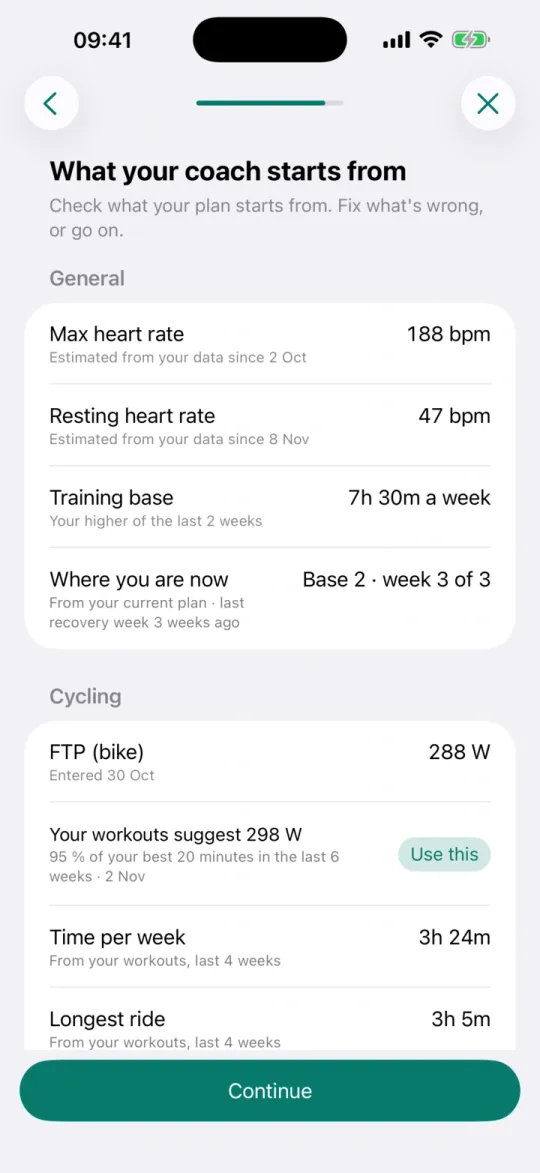
- What your coach starts from: check the values your plan starts from, fix what’s wrong, and tap Continue.
You can close the setup with the × at the top at any time; open the to-do again to carry on.
6. Your first season
- Let’s plan your season: tap Plan my season. If you haven’t subscribed yet, the subscription screen comes first: try it free for 14 days, and cancel any time in your App Store settings.
- Your coach plans the season up to your goals. That usually takes 5 to 10 minutes; you get a notification when it’s ready, so you don’t need to keep the app open.
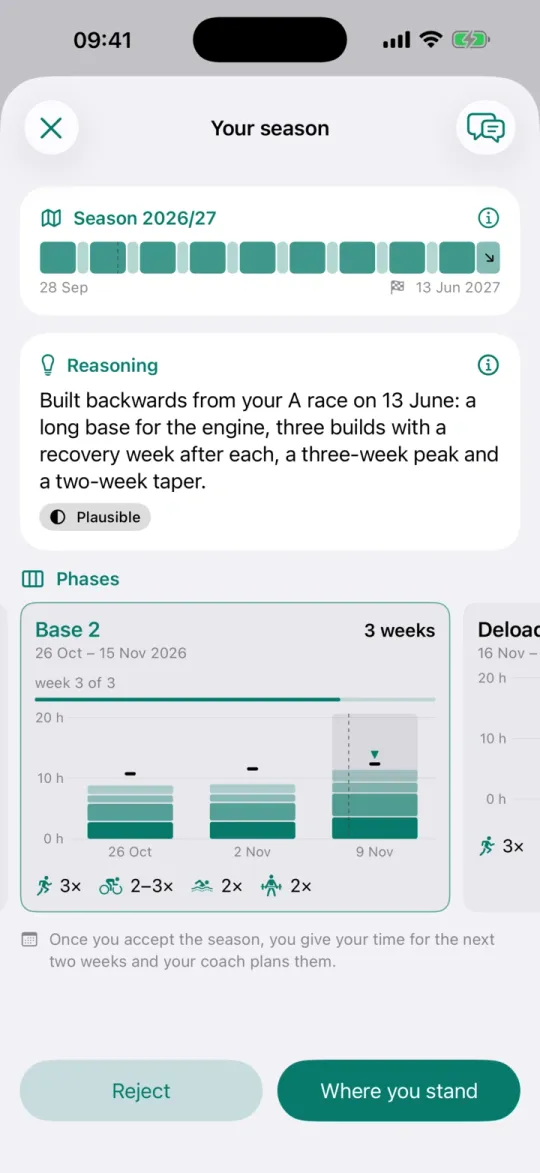
- Open the season from the notification or the to-do on Today. The first time, a short page explains how your plan is built; tap Show my season.
- Look through the phases up to your goals, each with its weekly aim and your coach’s reasoning. If something’s off, tap Reject and say what should be different; your coach plans the season again.
- Tap Where you stand for your coach’s assessment against each goal, then Accept season.
- Enter how much time you have each day in the next two weeks and tap Plan my next two weeks. That usually takes a few minutes.
- Review the two weeks and tap Accept, or Ask for changes with a note.
Your sessions are now on Today and the Coach tab, each with the reason it’s there. Every Sunday you plan the next two weeks the same way (your season and weekly planning). How a season becomes your week’s sessions: from season to session.
Questions
Do I need an Apple Watch for Mitovo?
No. Mitovo reads your workouts, heart rate and sleep from Apple Health, so what your iPhone and the apps or watches you use save there reaches Mitovo too.
Can I use Mitovo without Apple Health?
Yes, but your workouts and sleep stay empty, and your coach plans from what you tell it in the plan setup. You can connect Apple Health later in You › Connections › Apple Health.
How long does it take to plan my season?
Usually 5 to 10 minutes. You get a notification when it's ready, so you don't have to keep the app open. Planning the first two weeks after that usually takes a few minutes.