Your season and Sunday's weekly planning
Your plan has two levels: the season, phases of a few weeks up to your goals, and the next two weeks of sessions. This page shows where to see each one, how the Sunday planning works and how you review what your coach plans.
Updated:
Both levels are on the Coach tab: the card with your season’s name and the current phase opens the season, and the week card below it shows your sessions. Why the plan is built this way: from season to session.
1. Your season
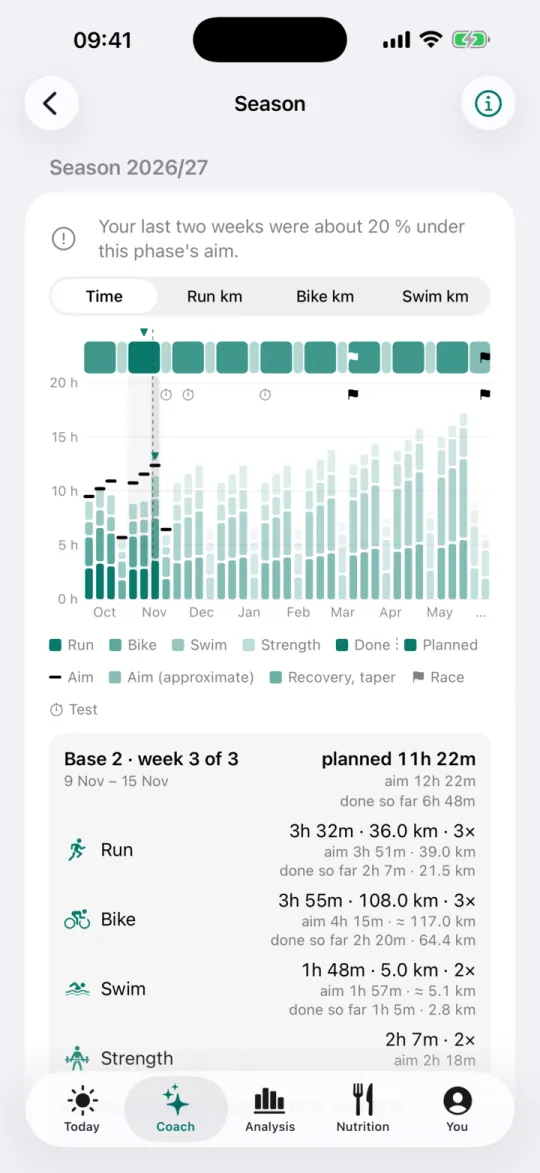
- On the Coach tab, tap the card with your season’s name. It shows the current phase and its week, for example “Week 2 of 4”, with a bar for how far into the phase you are.
- The Season page opens. A ribbon shows the phases over the weeks they cover, with a flag on race weeks. Tap a phase to select it.
- Below it, the chart has one bar per week: what you did in past weeks, what’s planned in your sessions, and further out roughly where the phase aims. Tap a week to see its numbers per sport. Switch between Time and Run km, Bike km or Swim km.
- Under Phases, swipe through the phases: each card has its dates, a bar for each of the phase’s weeks and the sessions a week per sport.
The ⓘ button at the top right opens How your plan is built, which explains seasons, phases and weeks. If your last two weeks were clearly under (or over) the phase’s aim, the page says so above the chart.
2. Your week
The week card on the Coach tab shows This week day by day. Use the arrows to go to Next week or Last week. The line under the title names the phase and the planned hours, for example “Base 1 · week 4 of 5 · 12h 45m planned”. Tap a session to open it; how to move, skip or change it is on changing a session.
Under the days, Share image sends the week shown as a picture: the days with their sports, the hours per sport and how much is easy, moderate and hard, with mitovo.app. No health values on it.
The last row, Coach log, lists what your coach planned and changed, and what you decided. An accepted change opens read-only from there.
3. Sunday: plan your next two weeks
- Every Sunday, Today shows the to-do Plan your next two weeks. It stays until you’ve done it. On the Coach tab, a card with the same name appears when your plan has no coming sessions.
- Tap it. Your next two weeks lists every day of the two weeks with the time you have, filled in from your usual week. Days that already have sessions show what’s planned.
- Change the time where your week is different. Pick No time for a day you can’t train. In the note field you can tell your coach something, for example “No swim on Wednesday next week”.
- Tap Plan. Your coach looks back at the past week and plans the two weeks inside your current phase. You get a notification when they’re ready.
You can change your usual week in You › Training › Schedule.
4. Review the weeks
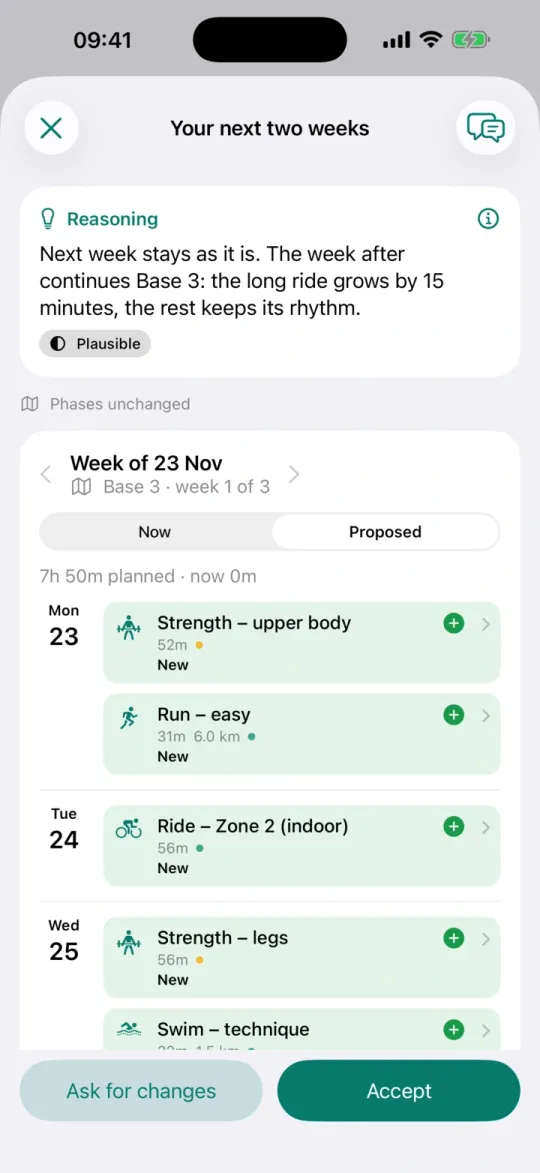
- Open Review your next two weeks from Today or the notification.
- Read the Reasoning, then go through the weeks: new, moved, changed and removed sessions are marked. A session’s page has your coach’s reason for it.
- Tap Accept. If something should be different, tap Ask for changes, say what in What should be different? and tap Ask: your coach plans the weeks again with your note.
The × at the top left closes the review for later; it waits on Today. If you haven’t decided by the time the first new day starts, the weeks start as proposed. While a review is open, your coach takes no other plan change; the app says Decide your coach’s change first with Show.
5. Between the Sundays
- Change weeks on the week card: tell your coach what should change in the planned weeks, and review its proposal. More on asking your coach.
- Adjust my plan on Today (with a single reason, the row is named after it): an injury, a change in your schedule, time off or a changed goal adds a reason here. Nothing changes until you tap it, then Adjust my plan… and Adjust. The sheet closes once your request is sent; while your coach works, a pill on every tab says so, and the change to review shows on Today when it’s ready.
- Your coach suggests a season check on Today: your weeks were clearly under (or over) the phase’s aim. Tap it, then Adjust my plan… and Adjust to let your coach look at your season, or Not needed to keep it as it is. What the checks look at: checks along the way.
6. A new season
- On the Season page, tap New season from my goals at the bottom.
- The plan setup opens with your answers filled in. Change your goals, your week or your injuries if you need to.
- Your coach builds the phases again from your goals, your week and your history. You review the new season, its phases as cards like on the Season page, and tap Accept season, or Reject with what should be different.
- Then give your time for the next two weeks, as on a Sunday.
The new season replaces the old one only once you accept it. Next: changing a session.
Questions
When does Mitovo plan my next weeks?
Every Sunday, Today shows the to-do Plan your next two weeks. You give the time you have on each day, and your coach plans the next two weeks inside your current phase. Nothing is planned until you start it.
What happens if I don't review my Sunday planning?
The weeks wait for you. If you haven't decided by the time their first day starts, they start as proposed, so you're never left without a plan. You can still change any session yourself.
How do I get a new season?
On the Coach tab, open the Season page and tap New season from my goals. You can change your goals, week and injuries first; your coach then builds the phases again, and you review the new season before it replaces the old one.