Changing a session: move, skip, swap
Your plan is yours to change. You can move, skip, shorten or swap any coming session yourself, without the coach and without waiting. This page shows each change, what the plan check tells you, and what happens next.
Updated:
Open a session from Today or from the week on the Coach tab. The buttons at the bottom of its page are your changes: Move, Skip and Change session. They work for sessions from today on. A past session can only be skipped, then removed; one you skipped earlier this week can still go to a day that’s left (Move to…). Each change applies straight away, and the Watch gets the new session by itself.
1. Move a session
- Open the session and tap Move.
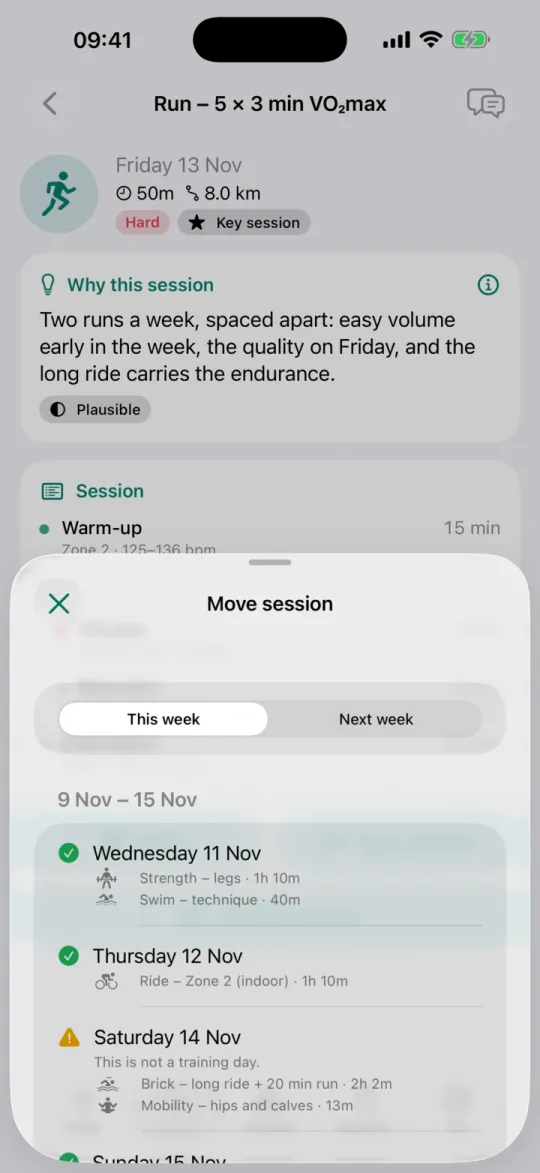
- Move session shows the days up to the end of your planned weeks, a week at a time. Each day says whether the session fits there (a tick) or what the plan check finds (a warning), and which sessions are already on it.
- Tap a day. For a day further out, pick it under Another day and tap Move to this day.
On the Coach tab you can also drag a session: touch and hold it in the week, then drop it on another day. It shows there at once. If the plan check warns about that day, Mitovo asks (Move anyway, or Cancel to put it back).
2. Skip a session
Tap Skip. The session stays in your week, marked skipped (the small x), so your next weekly planning can look back at it. Undo skip brings it back.
To take a skipped session out of your plan, swipe it to the left in the week on the Coach tab and tap Remove (a long swipe removes it straight away; on the Mac, right-click it), or open it and tap Remove. A session your coach planned then no longer shows for you, but your coach still counts it as missed. A session you added yourself goes completely, also on a past day: open it and tap Remove.
If you skipped this week’s key session or test, Today shows You skipped … with Move to…: pick one of the days left this week, and the session is planned there again.
3. Change the session
Tap Change session and pick:
- Change length: set the new length and tap Save. Steady parts and the number of intervals change with it; warm-up and cool-down stay.
- Edit steps (runs, rides, swims and Hyrox sessions with steps): change, add or remove blocks, then tap Save and pick Change this session, Save to my workouts or Both.
- Pick another workout: replace it with a workout from Workouts (yours and the library of each sport, at your paces now), a saved strength workout under Strength, or a Basic workout: pick the Sport, the Intensity (Easy, Moderate or Hard) and the length, then tap Use. Ask my coach at the bottom asks your coach instead.
- Save to my workouts (sessions with steps): keep the session as a workout of your own.
- Remove (a coming session): confirm with Remove. The session leaves your plan.
Tests can’t be shortened or swapped; move or remove them, or plan them again from the test catalogue (your numbers and fitness tests).
4. Add a session
In the week on the Coach tab, tap + under a day (today or later) and pick a workout, a saved strength workout or a Basic workout, as above. The picker closes once the session is in, and it shows on the day; if the plan check warns about it, Mitovo tells you then.
5. An easier day
On a morning when your recovery says to go easy, or after you told the morning check-in you feel unusually tired, Today may offer Make today easy for a moderate or hard session: the same sport, easy, about 70 % of the time. Mitovo makes the change at once and says Today is an easy day now. Why recovery steers your day: recovery and sleep.
6. What the plan check says
After a change, a Plan check card on the session lists what the check found, for example two hard sessions on consecutive days. You can keep it: the plan check only warns. Nothing is blocked. If you’d like your coach to rework the week around your change, ask your coach.
Your coach sees the sessions you changed as yours. When it plans again, it’s asked to leave them as they are unless the reason for that planning needs them changed; then it says which and why. If you change a day while a change from your coach waits for your decision, accepting it usually keeps your edit. If your coach changed the same day, the review says You changed … since your coach made this. Tap Ask again, and your coach proposes it from your plan as it is now.
Offline: moving, skipping and removing work without a connection and are sent when you’re back online. Changing length, steps or workout needs a connection.
Questions
Can I move a session to another day in Mitovo?
Yes. Open the session and tap Move: Mitovo lists the days up to the end of your planned weeks, each marked with what the plan check finds there. Tap a day and the session moves. On the Coach tab you can also drag a session to another day of the week.
Does changing a session myself upset my plan?
Your change takes effect at once and the plan check shows any warnings on the session, but it never blocks you. When your coach plans again, it's asked to leave the sessions you changed as they are unless the reason for that planning needs them changed, and then it says which and why.
What happens when I skip a session?
It's marked skipped and stays in your week, so your next weekly planning can look back at it. If it was this week's key session or test, Today offers to move it to a day that's left.
Can I remove a skipped session from my plan?
Yes. Swipe it to the left in the week on the Coach tab and tap Remove, or open it and tap Remove. A session your coach planned then no longer shows for you, but your coach still counts it as missed. A session you added yourself goes completely, also on a past day.