Mitovo on your Apple Watch
Your coach's endurance sessions go to the Workout app on your Apple Watch with their steps and targets. This page shows how they get there, how to record them and what the Mitovo app on your Watch does.
Updated:
You need an Apple Watch paired with your iPhone and Apple Health connected in Mitovo on that iPhone (Apple Health). Planned sessions go to Apple’s Workout app, so they don’t need the Mitovo app on your Watch.
1. Your planned sessions on the Watch
- The first time Mitovo puts sessions on your Watch, iOS asks whether Mitovo may schedule workouts. Allow it.
- Mitovo puts the endurance sessions of the next 7 days, today included, into the Workout app: runs, rides, swims, walks and Hyrox station sessions. A brick goes as one workout per discipline, named after the session and the discipline. Strength, mobility and rest days don’t go to the Watch.
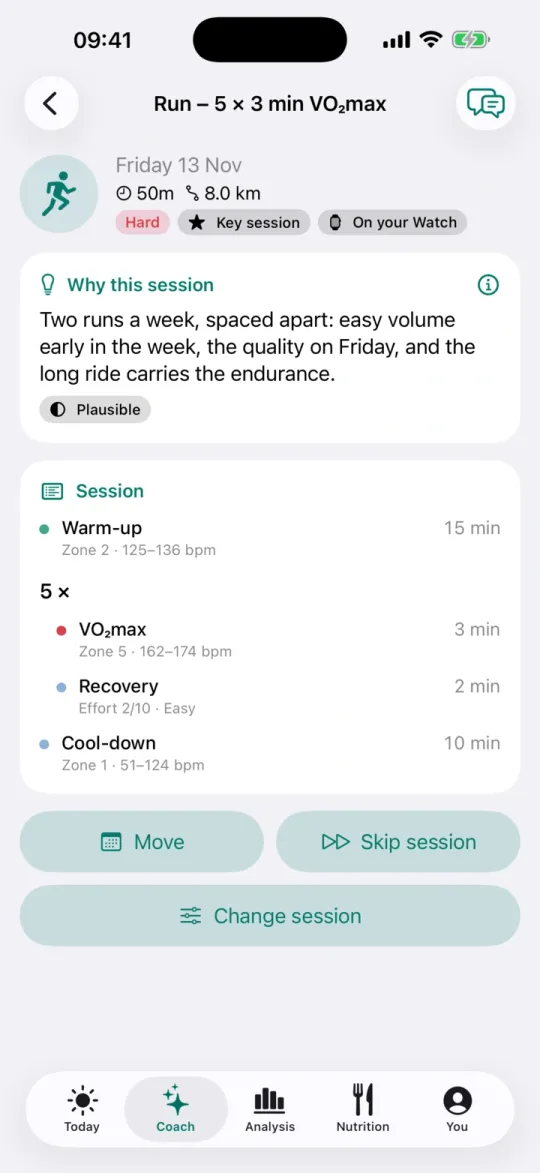
- A session that’s on your Watch shows On your Watch: on its page, in its row under Today, and with a Watch icon in the week on the Coach tab.
When your plan changes (you accept a new week, move a session or change one), Mitovo updates your Watch by itself. A session the Watch can’t take says why on its page, for example Not on your Watch: it can’t take one of the steps.
If you didn’t allow it, the week on the Coach tab says Allow Mitovo to schedule workouts in Settings to see sessions on your Watch.
2. Steps and targets on the Watch
Every step keeps its length or distance, and its target becomes an alert:
- Heart-rate zones become a bpm range from Mitovo’s own zones, not your Watch’s zones. How the zones are set: zones and tests.
- Pace becomes a speed range.
- Power becomes a watt range from your FTP; the Watch needs a power meter connected to show it.
- Effort (RPE) has no alert on the Watch; the step’s name shows it.
Swim drills show by name. A target the Watch can’t take is left out, and the step keeps its name.
3. Record it
- On the day, open the Workout app on your Apple Watch and start the session there.
- Follow the steps; the Watch alerts you when you’re outside a target.
- End the workout on your Watch as usual. It’s saved to Apple Health.
- Open Mitovo on your iPhone. It syncs the workout, matches it to the planned session of the same day and sport, and shows it under Done today.
Hyrox station sessions go as an indoor run by default: the runs with their distance, the stations as open steps. On the session’s page, Runs on your Watch switches to Outdoor, so the runs between the stations use GPS. Bricks: after the transition, start the next discipline’s workout on your Watch.
4. Send a workout from the library
- On Today, under Start a session, tap Run, Swim or Hyrox.
- Open a workout. It’s set to your paces of today.
- Tap Send to my Watch. Apple’s workout preview opens; add the workout to your Watch from there.
A workout you send this way isn’t part of your plan, and a plan change doesn’t remove it from your Watch. To put it in your plan instead, tap Add to my plan. Bike workouts open Mitovo Ride with Ride it.
5. The Mitovo app on your Watch
The Mitovo app on your Watch comes with the iPhone app and needs watchOS 11 or later. It shows:
- Load, Recovery and Energy: today’s load against the plan, your recovery score from last night and the energy you’ve burned so far against your usual day. You can add each one to your watch face as a complication (Training load, Recovery, Energy).
- Today: last night’s sleep, today’s sessions and your fuelling notes. If it’s empty, open Mitovo on your iPhone; the Watch gets its values from there.
- Heart rate without a chest strap: when you start a breathing session, a meditation (breathing and meditation) or a ride (Ride mode) on your iPhone, Mitovo opens on your Watch to measure your heart rate. Wear the Watch snug on your wrist. In a breathing session with Vibration on, the Watch taps the breathing cues on your wrist.
- Strength sessions: a session you log on your iPhone shows its sets on the Watch, where you can tick them off.
Next: your Watch workouts count towards your load and your coach’s weekly planning like every other workout in Apple Health.
Questions
How do I get Mitovo's workouts on my Apple Watch?
Connect Apple Health in Mitovo on your iPhone and allow Mitovo to schedule workouts when iOS asks. Your endurance sessions of the next 7 days then appear in the Workout app on your Watch, and Mitovo keeps them up to date when your plan changes.
Do I need an Apple Watch for Mitovo?
No. Mitovo reads your workouts from Apple Health, whichever device recorded them. The Watch is the easiest way to follow a session's steps and targets on your wrist.