Goals and races
Your season is built toward your goals. This page shows how to add a race or a target, what the priority does, what happens when you change a goal, and where to find your coach's assessment and the race plan.
Updated:
Your goals live on the Coach tab, in the Goals card at the top. The same list is under You › Training › Goals. Your first goal comes from the plan setup (getting started); you can add more at any time.
1. Add a goal
- On the Coach tab, tap Add goal in the Goals card.
- Name the goal in the first field, for example “Half marathon under 1:25”.
- Pick its Kind: Event or race, Performance or Body composition.
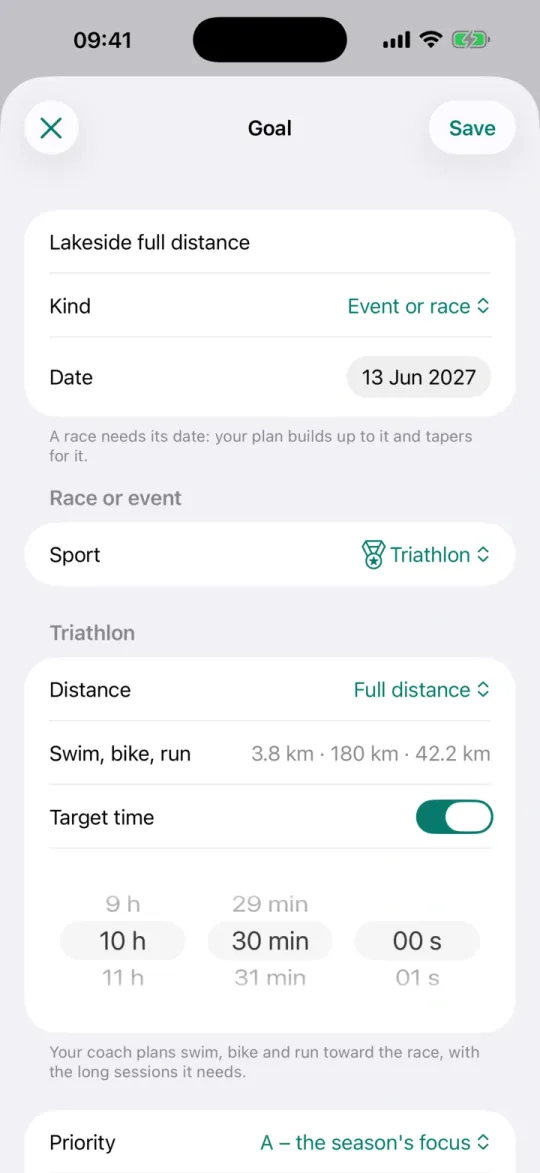
- A race needs its Date. Any other goal can have one: turn on Has a date.
- Set the Priority: A – the season’s focus, B – important or C – along the way.
- Add Notes if you like (target time, course, why it matters), then tap Save.
Your plan peaks for A goals, with a taper. B goals get a few easier days before them, and C goals you do from training. How the season builds toward them: from season to session.
2. Race details
For an Event or race, pick the Sport under Race or event: Running, Cycling, Swimming, Triathlon, Hyrox, Powerlifting or Something else. The type tells your coach which sports to plan and what the race needs. Then fill in what that type asks for:
- Running: the Distance (5 km, 10 km, half marathon, marathon or Other distance), the Climbing and, if you like, a Target time.
- Cycling: the distance, the Climbing and a Target time if you have one.
- Swimming: Open water or Pool, the distance and a Target time if you have one.
- Triathlon: the Distance (Sprint, Olympic, 70.3, Full distance, or Own distances with all three legs) and a Target time if you have one.
- Hyrox: your Division and Category, and a Target time if you have one. Once saved, the goal shows your division’s race weights and, with a target time, your target splits.
- Powerlifting: the Target per lift: squat, bench press and deadlift.
3. A target without a race
A Performance or Body composition goal can carry a number your coach measures your progress against:
- For a performance goal, pick the Sport it comes from, for example running for a 5 km time or cycling for your FTP.
- Under Target, pick the Target metric: VO₂max, FTP, Threshold pace, Critical swim speed (CSS) or Est. 1RM (then the Lift) for performance; Weight or Body fat for body composition.
- Enter the value and tap Save.
With a date, your coach checks the number against the date. Without one, it follows the number’s trend instead.
4. Where you stand
Under the goals, the Where you stand card shows your coach’s assessment against each goal (its date and occasion, then each goal with its status): the first one right after your season is planned, then again at every new training phase. A goal with a date gets On track, Tight, Off track or Too early to say; a target without a date gets Improving, Flat or Declining. The card lists the two before it; once there are more, tap All assessments for all of them.
When your coach needs a test to judge a goal, the assessment says Test to judge this goal · plan it. How tests work: your numbers and fitness tests.
5. Change, finish or drop a goal
- Tap the goal in the Goals card.
- Change what you need: the date, the priority, the race details. Set Status to Achieved or Dropped when it’s done, or tap Delete goal.
- Tap Save.
With a plan running, a new or deleted race or dated goal, or a change to a goal’s date, kind, priority, status or race details doesn’t change your season by itself. It puts Goal changed: … on Today’s to-do list. Tap it, then Adjust my plan…, add anything your coach should know and tap Adjust. Your coach looks at your whole season and proposes a change; you Accept or Reject it. Tap Not needed to keep the plan as it is. A new name or a new target number alone changes nothing in your season.
Your coach can suggest goals too, for example when two of yours conflict. Its card says New goal or Goal change: tap Add or Apply to take it, or Not now.
To build the whole season again from your goals, use New season from my goals on the Season page (your season and weekly planning).
6. The race plan
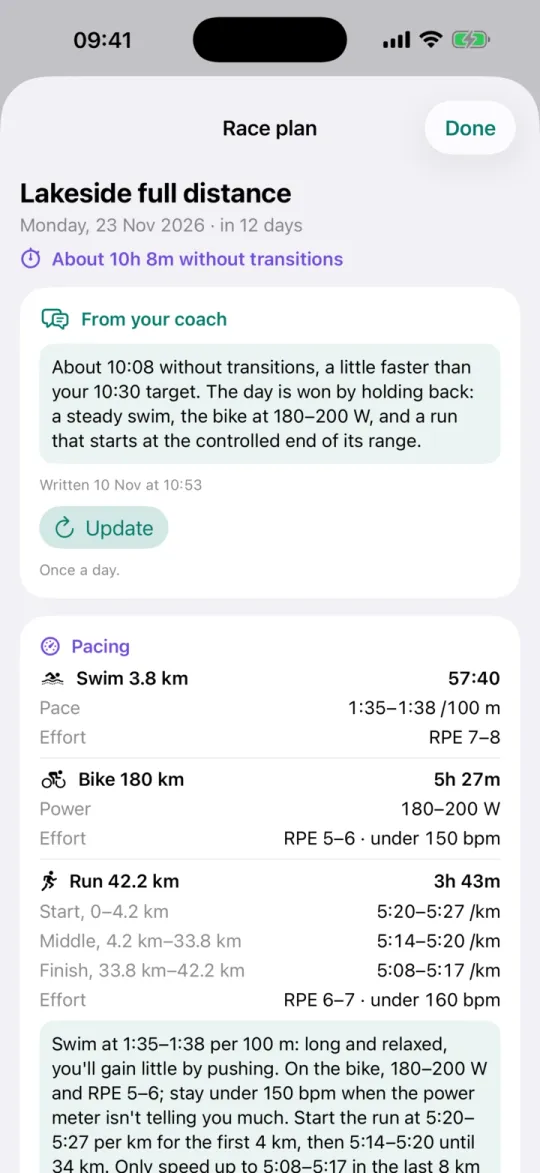
An active A race with a date gets a race plan, except a Hyrox race or a powerlifting meet. From eight weeks before the race, tap Race plan: pacing and fuelling under the race in the Goals card, or Race plan on the race session.
- If the race’s distance or course is missing, Make it yours asks for it: tap Add race details.
- Read Pacing, Fuelling, The days before and, for a long race, Rehearse it.
- Your coach adds how to apply the numbers on race day when your taper starts. After a race-like session or new race details, tap Update (once a day).
- At the end, Share image sends the race plan as a picture (the expected and target time, pacing per leg, carbs and fluids per hour, and mitovo.app) to Instagram, Strava or a chat. Nothing from your body weight and no heart-rate caps on it.
What goes into the race plan and why: from season to session. Next: your season and Sunday’s weekly planning.
Questions
What do A, B and C goals mean in Mitovo?
An A goal is the season's focus: your plan peaks for it, with a taper. A B goal gets a few easier days before it, and a C goal you do from training. You set the priority in the goal's Priority field.
Can I have a goal without a date?
Yes, except for a race, which always needs its date. A performance or body composition goal can go without one; give it a target metric, such as an FTP or a 1RM, and your coach follows its trend instead of checking it against a date.
What happens to my plan when I change a race date?
Nothing until you say so. Mitovo puts the change on Today's to-do list as a reason to adjust the plan. Tap it and choose Adjust my plan…, and your coach looks at your season and proposes a change, which you accept or reject.