Strava and FIT files
Most apps pass only a summary of each workout on to Apple Health. This page shows how to import the original FIT files, from Strava's archive or any device, and how to send your Mitovo Ride rides to Strava.
Updated:
Mitovo never reads anything from your Strava account. Your Strava history comes in as files, like the files of any other watch, bike computer or indoor app, and your rides from Mitovo Ride can go to Strava.
1. Get your files
A FIT file is the original recording of your device. Where to find yours (the same list is under Where to find your files in the app):
- Strava, all workouts at once: on strava.com, open Settings › My Account › Download or Delete Your Account and tap Request Your Archive. Strava emails you a ZIP. Save it to Files on your iPhone, for example in iCloud Drive, and pick it in Mitovo as it is.
- Garmin, all workouts at once: on garmin.com, Account › Data Management › Export Your Data. Garmin emails a ZIP; pick it as it is. One workout: open it on Garmin’s website and choose ⚙︎ › Export Original.
- Zwift: on your computer, Documents › Zwift › Activities. Copy the files to iCloud Drive, then pick them.
- Wahoo, Hammerhead, COROS, Polar and others: export the workout as a FIT file in their app or on their website.
Mitovo reads FIT files, Strava’s gzipped .fit.gz files and ZIPs with either inside, also ZIPs in ZIPs. GPX and TCX files stay out.
2. Import them
- Open You › Connections › Import workouts and tap Choose files.
- Pick your files or ZIPs; you can pick several at once.
- Mitovo shows Importing … of … files. You can leave the screen: the import keeps running. Stop ends it; choosing the same files again later carries on, and files imported before are skipped.
- At the end, Done lists what happened: Workouts that got more detail, New workouts, Imported before, and files it skipped, such as Not workouts (e.g. a drive) or Too short (under a minute).
Importing needs a connection. If something failed to upload, choose the same files again.
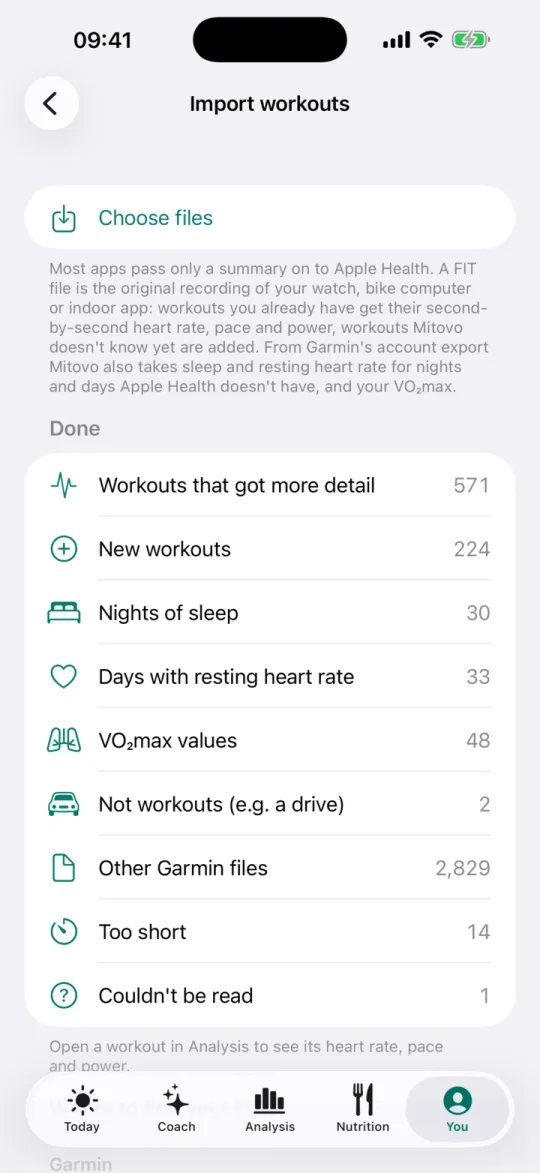
From another app: on the iPhone, share a FIT file or ZIP to Mitovo, or use Open in from Files, Mail or any app; Mitovo opens Import workouts and starts. On the Mac, drop the files on the window, choose File › Import FIT Files… (⇧⌘I), or open them with Mitovo from the Finder.
3. What Mitovo does with them
- A workout Mitovo already has from Apple Health, of the same sport and at the same time, gets the file’s second-by-second heart rate and its power. Nothing is counted twice.
- A workout Mitovo doesn’t have yet is added. With Add imported workouts on in You › Connections › Apple Health (the default), it also goes to Apple Health, so all your training is in one place.
- Load, best efforts and power zones are worked out again. Open a workout in Analysis to see its heart rate, pace and power.
- From Garmin’s account export, Mitovo also takes sleep and resting heart rate for nights and days Apple Health doesn’t have, and your VO₂max.
A workout that came out wrong: open it and tap …. For a workout the import added you can Edit its sport and title, Trim its start and end, or Delete it (also from Apple Health). Any workout can be left out with Don’t use for my coach.
If you set up a bike or triathlon goal and your rides of the last 12 weeks are few, without power or with sparse heart rate, the plan setup offers the same import in its Your rides step (Getting started).
4. Send your rides to Strava
- Open You › Connections › Strava and tap Connect with Strava.
- Strava’s sign-in opens. Log in and allow Mitovo to upload your activities; leave that box ticked.
- Back in Mitovo, Send rides to Strava is on and Connected since shows the date.
Connecting Strava may not be available for a while: Strava limits how many athletes a new app can connect, and we’re asking them for more. If you don’t see Strava under You › Connections, that’s why.
From then on, every ride you finish in Mitovo Ride goes to Strava right after it’s saved, with its title, its numbers and how it went. Imported workouts and workouts from Apple Health don’t go: they come from your own devices. The ride’s summary shows Sending to Strava…, then On Strava with View on Strava, or why it couldn’t be sent, with Try again when that helps.
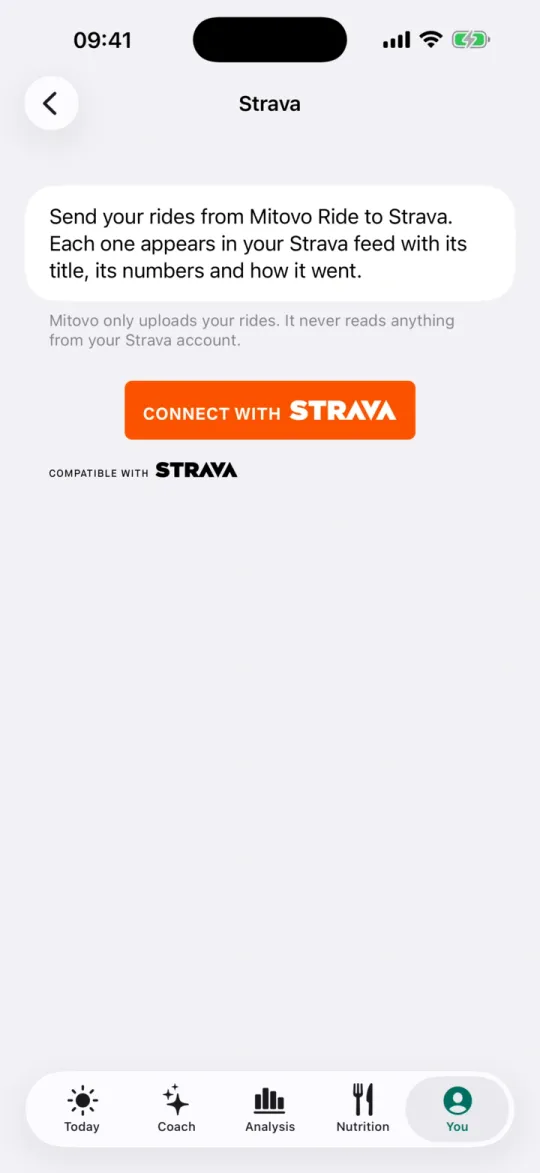
To stop: turn off Send rides to Strava, or tap Disconnect Strava and confirm with Disconnect. Mitovo then deletes its access to your Strava account; rides already on Strava stay there.
Questions
Can I import my Strava activities into Mitovo?
Yes, as files. Request your archive on strava.com, then pick the ZIP Strava emails you in You › Connections › Import workouts. Mitovo reads the FIT files in it; GPX and TCX files stay out.
Does Mitovo read my Strava account?
No. Mitovo never reads anything from your Strava account. If you connect Strava, Mitovo only uploads the rides you finish in Mitovo Ride.
What is a FIT file?
The original recording of a watch, bike computer or indoor app, with heart rate, pace and power second by second. Apple Health often gets only a summary, so importing the FIT file gives Mitovo the detail.