The Mac app: setting up and finding your way
Mitovo on the Mac is the same app as on your iPhone, with the same account and the same data. This page shows how to set it up, where things are, and what only your iPhone does.
Updated:
You need a Mac with macOS 26 or later. Mitovo for Mac comes with the same App Store app as on your iPhone, so there’s no separate download or purchase, and one subscription covers both. What the Mac app is good for: Mitovo for Mac.
1. Log in with your iPhone’s account
- Open Mitovo on your Mac.
- Log in as on your iPhone: Continue with email with the same address and the code from the email, or Sign in with Apple with the same Apple Account.
- Your goals, plan, sessions, workouts, coach messages and food log are there, the same as on your iPhone.
New to Mitovo? Start on your iPhone (Getting started): Apple Health connects only there. If you sign up on the Mac, the first steps are the same, without the watch and Apple Health screens.
2. Find your way
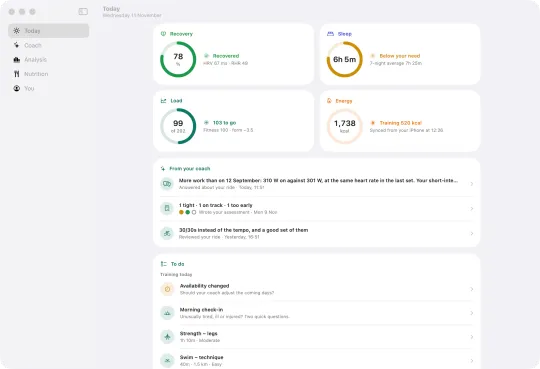
- The sidebar holds the iPhone’s tabs: Today, Coach, Analysis, Nutrition and You. ⌘1 to ⌘5 switch between them.
- The screens are the iPhone’s, in a column in the middle of the window. What opens full screen on the iPhone opens as a sheet on the Mac.
- The File menu:
- New Coach Request (⌘N) writes to your coach from anywhere (Ask your coach).
- Start a Session opens Breathe, Meditate, Strength, Ride (⌘R), Run, Swim or Hyrox, like Start a session on Today.
- Import FIT Files… (⇧⌘I) and Upload Document… (⇧⌘U).
- During a ride a Ride menu lists the ride’s keys (Ride mode).
3. Drop files on the window
Drag files onto the Mitovo window:
- FIT files,
.fit.gzfiles and ZIPs, for example Garmin’s or Strava’s account export, go into Import workouts (Strava and FIT files). - PDFs and photos of lab reports and doctor’s letters open the document upload (Health records).
Mitovo doesn’t open folders: drop the files inside them. In the Finder, Open With also offers Mitovo for FIT files and ZIPs.
4. Your iPhone’s data on the Mac
The Mac has no Apple Health. It shows what your iPhone has synced and never syncs itself, so keep Mitovo on your iPhone and open it there now and then.
- Sleep, recovery, heart rate and workouts from your watch arrive through your iPhone.
- Energy on Today shows what your iPhone synced, with Synced from your iPhone at …. Before your iPhone has synced anything that day: Nothing synced today yet.
5. What only your iPhone does
- Apple Health: connecting it and syncing.
- Apple Watch: sending sessions to your Watch, and heart rate from your Watch during a ride or a breathing session. On the Mac, a ride takes heart rate from a Bluetooth chest strap.
- The camera: scanning documents, barcodes and nutrition labels. On the Mac, add a document as a PDF or photo file, and type the number under a barcode.
- Notifications arrive on your iPhone. On the Mac, You › App › To-dos & notifications sets what your iPhone shows, under Notify me on my iPhone.
Without internet, the Mac app works like the iPhone app, with the offline banner at the top of the window (Offline mode).
Questions
Why doesn't Mitovo on my Mac show last night's sleep?
The Mac has no Apple Health. Your sleep, heart rate and workouts reach Mitovo through the app on your iPhone, and the Mac shows what your iPhone has synced. Open Mitovo on your iPhone, and the Mac shows the new data.
Do I log in to the Mac app with the same account?
Yes. Log in with the same email address, or Sign in with Apple with the same Apple Account, as on your iPhone. Your goals, plan, workouts and coach messages are then the same on both, and one subscription covers both.