Analysis: markers, fitness and fatigue, your cards
The Analysis tab shows how your training adds up: fitness and fatigue, your best efforts, your markers and every workout. This page shows what each card is, how to open the details, and how to choose and order the cards.
Updated:
1. The cards
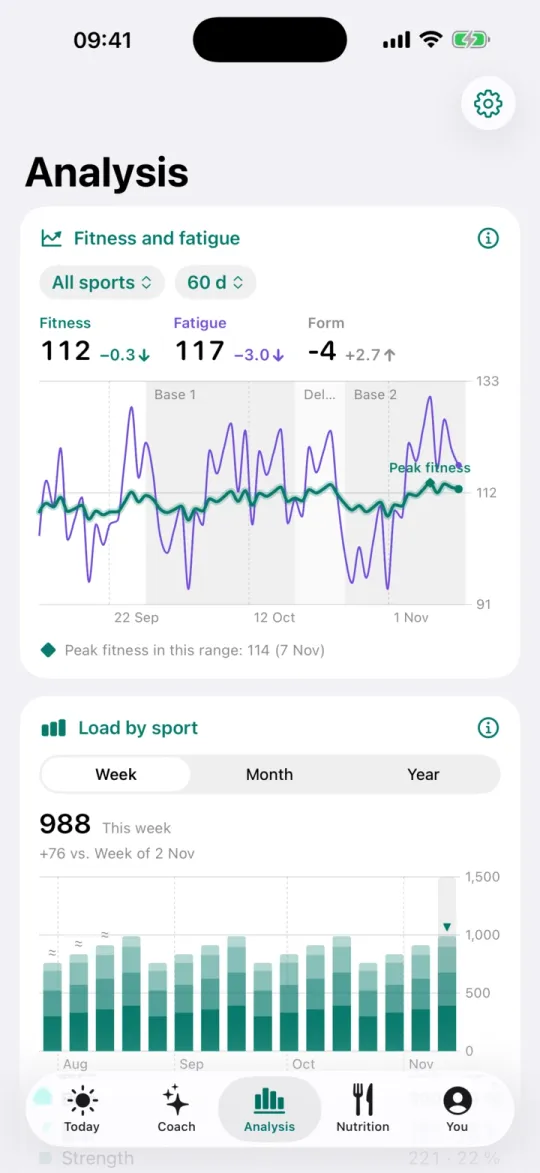
Open the Analysis tab. In the standard order, it shows:
- Fitness and fatigue: your Fitness, Fatigue and Form as numbers, and fitness and fatigue as lines over time, with your training blocks and goals marked. Pick the sport and the range at the top of the card. Touch and drag along the chart to read a day. What the three numbers mean: training load.
- Load by sport: your training load per week, month or year, split by sport.
- Best efforts: your best power or pace over each duration, for bike, run or swim, compared with an earlier period if you like.
- Race targets: for each run, bike, swim or triathlon goal, today’s estimate next to your target.
- Recent sessions: your last three workouts. See all opens All workouts.
- Intensity distribution: how your time with heart rate splits into low, moderate and high intensity.
- Markers: health and performance values, see below.
- Strength: Big lifts (estimated 1RM for squat, bench press, deadlift and overhead press), Muscles trained, and Your exercises.
- Volume: distance or time per sport, by week, month or year.
The ⓘ button on a card explains what it shows. If your focus isn’t endurance, the endurance cards start hidden; you can turn them on as below.
2. Markers
Markers groups your values under Health (such as VO₂max, resting heart rate, heart-rate recovery and blood pressure) and Performance (such as FTP, threshold pace, best times, race predictions and estimated 1RMs), plus Tests once you have a test result. Each tile shows the value and the last 12 months.
Tap a marker for its history (6 months, 1 year or 2 years), where the value comes from behind the ⓘ button next to it, and for some markers Take the test. FTP and threshold pace have Update, which opens your numbers.
Tap Edit on the markers to choose which ones show.
3. Choose and arrange the cards
Tap the gear at the top of Analysis (or go to You › App › Analysis):
- Under Sections, drag a card by its handle to a new place, or turn it off with its switch.
- Under Sports in Volume, choose the sports the volume cards show and drag them into order.
- Under each Markers group, turn markers on or off.
Use the default order, Use the automatic choice and Use the automatic choice for markers go back to Mitovo’s choice. Every change is saved on your account straight away, so your Mac shows the same.
4. Your workouts
Tap a workout under Recent sessions or All workouts to open it: the route, heart rate, pace or power, time in zones, the training effect and your coach’s review. Everything you can do with the workout is behind … at the top right: Share image, Ask your coach (it takes you to the questions about this workout further down), Don’t use for my coach (or Use for my coach) and, for workouts recorded with Mitovo or imported into it, Edit, Trim and Delete. Offline, only Share image works; the rest needs a connection. Share image makes a picture of the workout (the session’s title, the date, the route or the pace or power over it, time, distance and pace or power; for a strength session its exercises and sets with the volume, for a triathlon or brick its legs; and mitovo.app) to post on Strava, Instagram or anywhere. No heart rate or other health values on it. The route leaves out its first and last 500 m, so your start and finish don’t show; Show route takes it off.
For a strength workout, Edit sets on its sets card opens the logged sets to change them (strength sessions).
Offline: Analysis shows the last stored cards and workouts; arranging cards, editing workouts and updating values need a connection.
Questions
How do I change the order of the cards in Mitovo's Analysis tab?
Tap the gear at the top of the Analysis tab, or go to You › App › Analysis. Under Sections, drag a card to a new place or turn it off. The order is saved on your account, so it's the same on your iPhone and your Mac.